Tutorial · two tracks · adults 18+

Get started

Pick your chapter. Big numbered steps. Short sentences. Download the right app — then follow the panels.

Adults only. Discretion handles adult relationship and infidelity matters only — no minors, no predator cases. Apps have no public Create account. Clients never see investigator names — only “Case team.”

Client track

Companion Notes

Your private case app. Web portal for Google apply. App sign-in with email + password after approval.

Step 1

Download Companion Notes

Install the client APK from the latest release.

  • Get companion-notes.apk from GitHub Releases.
  • Allow install from your browser or Files if Android asks.
  • Do not install Schedule Helper — that is the field app.

Young adult installing Companion Notes on a phone
Client app only — bland name on purpose.
Step 2

Get access

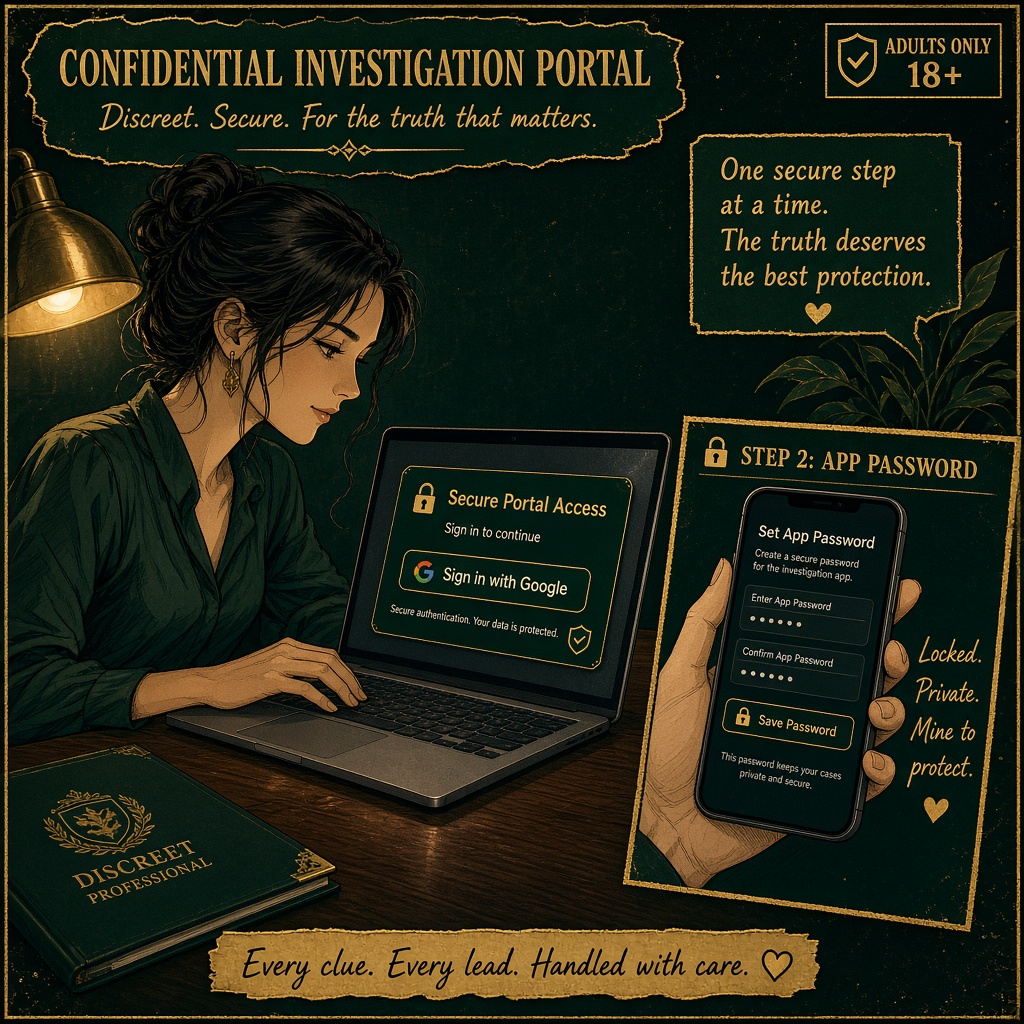
Two ways in — both end with an app password.

  • Web portal (preferred): open Request investigation, continue with Google, complete the confidential application. When approved, set an app password in the portal.
  • Case manager: if they create your login for you, they share email + temporary password privately. No public signup in the app.
  • Account approval and case acceptance are reviewed separately.
Client applying with Google then setting an app password
Google is website-only. The app uses email + password.
Step 3

Sign in

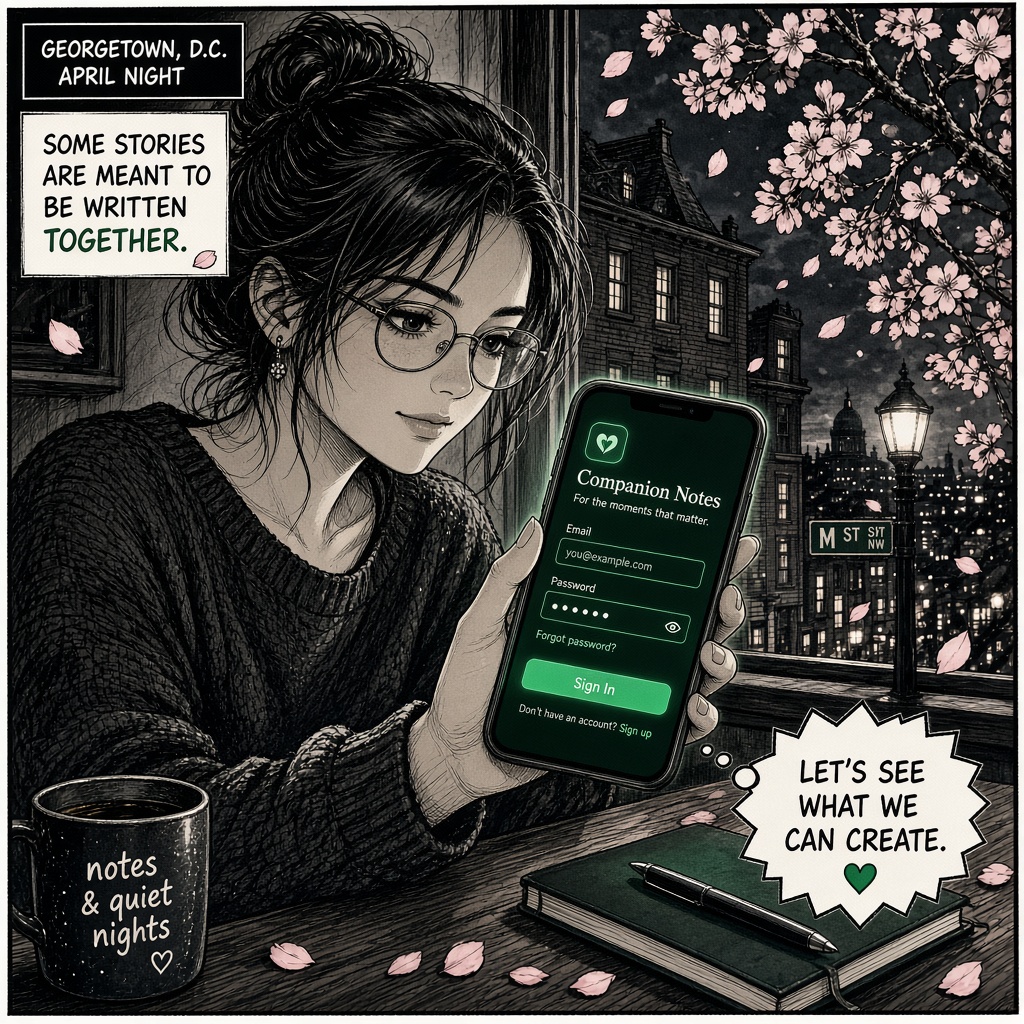
Open Companion Notes. Sign in. You’re in.

  • Use the email and app password from your portal or case manager.
  • There is no Create account button — ask for access if you don’t have it.
  • Change the temporary password when prompted.
Signing into Companion Notes
Sign in only — no public registration screen.
Step 4

Intake & case setup

Tell Case team what’s going on. Adults only. Keep it factual.

  • Free Oct intake: Intake & case setup is free throughout October 2026 (usually GYD$5,000). Intake & case setup is usually GYD$5,000 — confirm with Case team.
  • Confirm you and the subject are both 18+.
  • Who, where, when — avoid speculation.
  • Website portal starts contact; full case work continues in the app.
Client reviewing GYD packages and free October intake
Packages in GYD — pay after unlock, not at signup.
Step 5

Case & leads

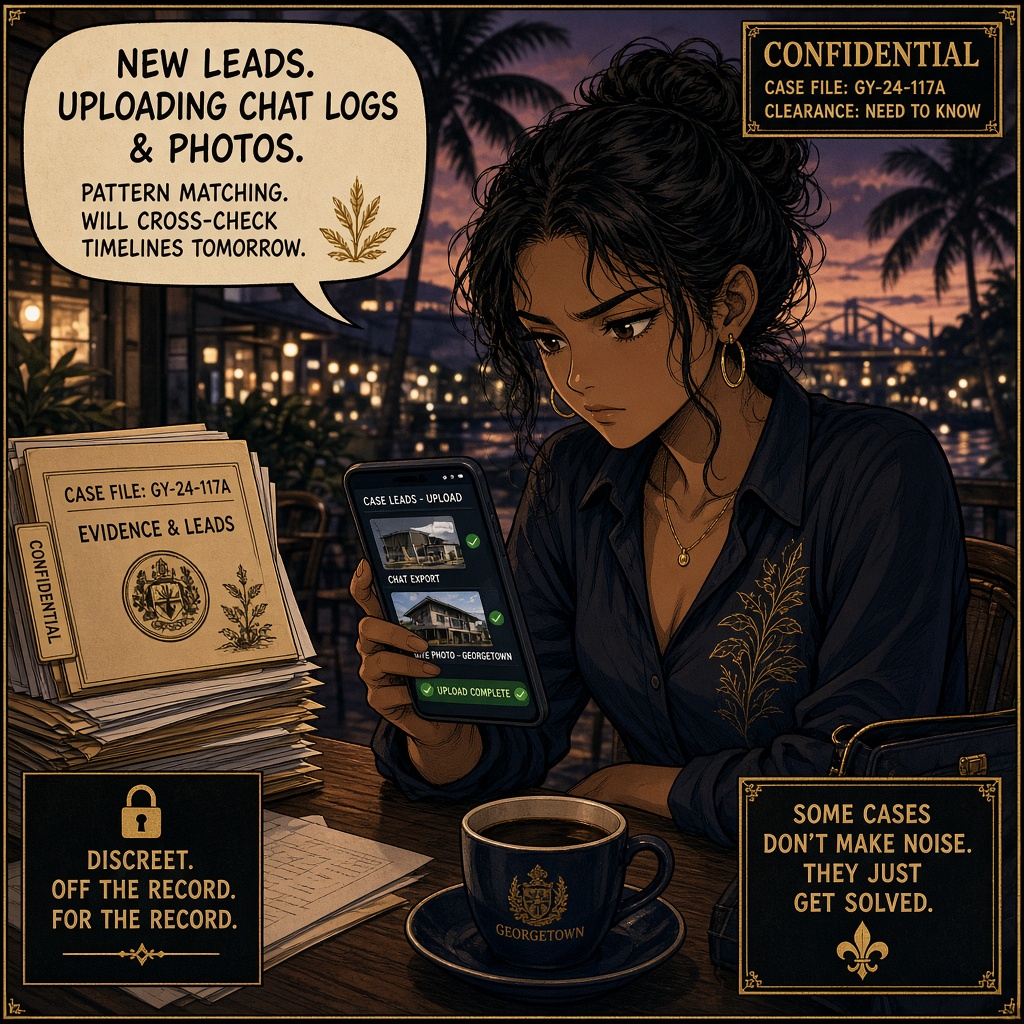
Submit or view your case. Upload photos and chat screenshots.

  • Open your case to check status on the timeline.
  • Upload clear leads: screenshots, photos, short captions (date, place, why).
  • Leads are reviewed and sanitized before any field release.
  • You never see investigator identity — only Case team.
Uploading lead photos and chat screenshots
Leads help the brief — they are not instant field drops.
Step 6

Document today

Activity log: photo, voice, video, tags — plus Learn when you need context.

  • From home or a case, tap Document today / Activity log.
  • Add dated facts, how you felt, photos, video, or a voice note.
  • Tag patterns (gaslighting, triangulation, love-bombing…). Tap Learn on a tag for the educational card — labels, not diagnoses.
  • Recording shows a clear red indicator. Confirm consent if others may appear.
  • Deeper modules: Learn & strength.
Documenting today with activity log and Learn cards
Cloud-backed journal — stored with your case.
Step 7

Case team & vault

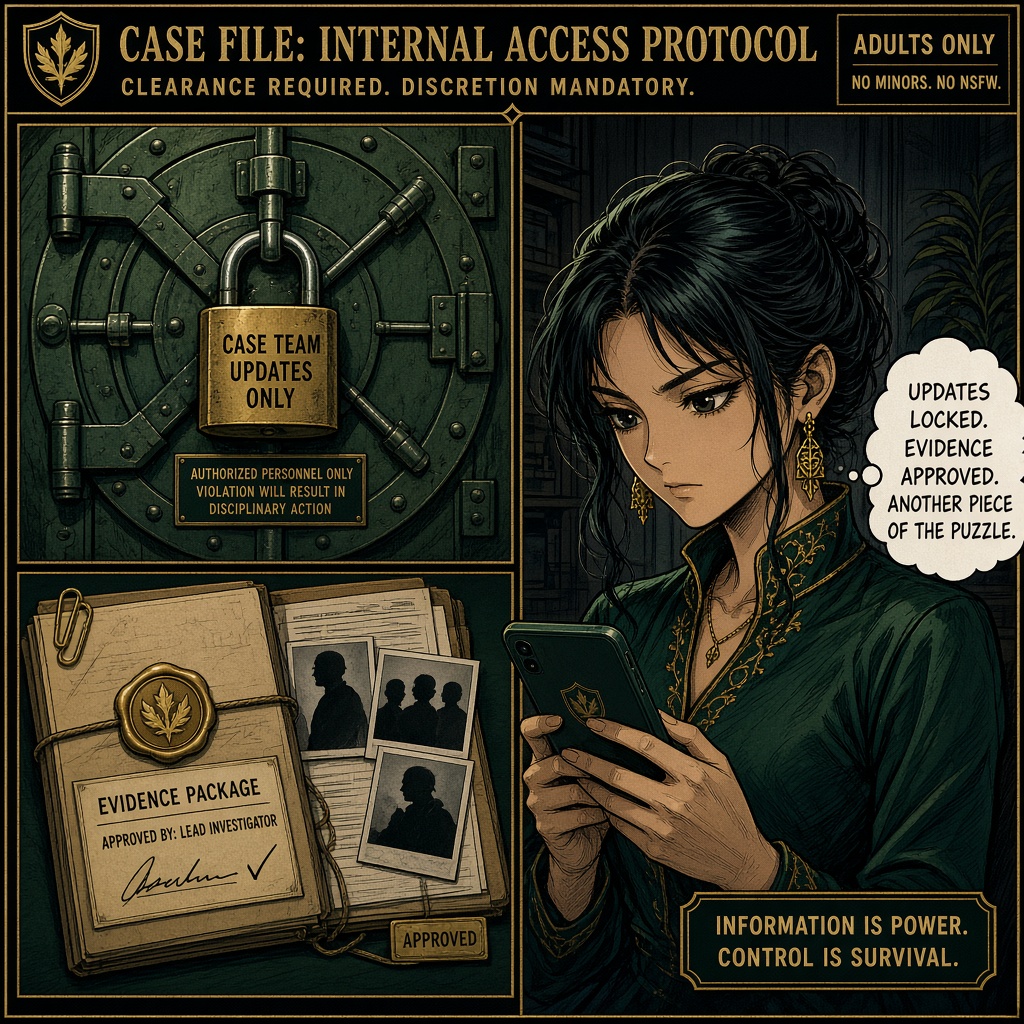
Follow updates. Evidence stays locked until unlock.

  • Message Case team in-app — never a named investigator.
  • Status moves: intake → assigned → active → review → ready → unlocked.
  • While locked: you see status and chat, not vault media.
  • Only your case manager unlocks the approved Court Package.
Locked vault versus unlocked evidence package
Locked first. Approved evidence only after unlock.
Step 8

Pricing & pay

Know the GYD packages. Pay when your case manager unlocks.

  • All public prices are in GYD.
  • Payment is arranged after unlock (invoice) — not public self-checkout.
  • Ask Case team which package fits your matter.
  • See full list on pricing.
  • House rules: Client Privacy & Business Protection — confidential cases, adults 18+, no fabrication, pay for approved unlock.
Manga pricing quest panel
Pay after unlock — Case team handles the invoice path.
Field track

Schedule Helper

Assigned cases only. Lawful public observation. Clients never learn your name. You earn 60% after they pay / admin marks paid.

Step 1

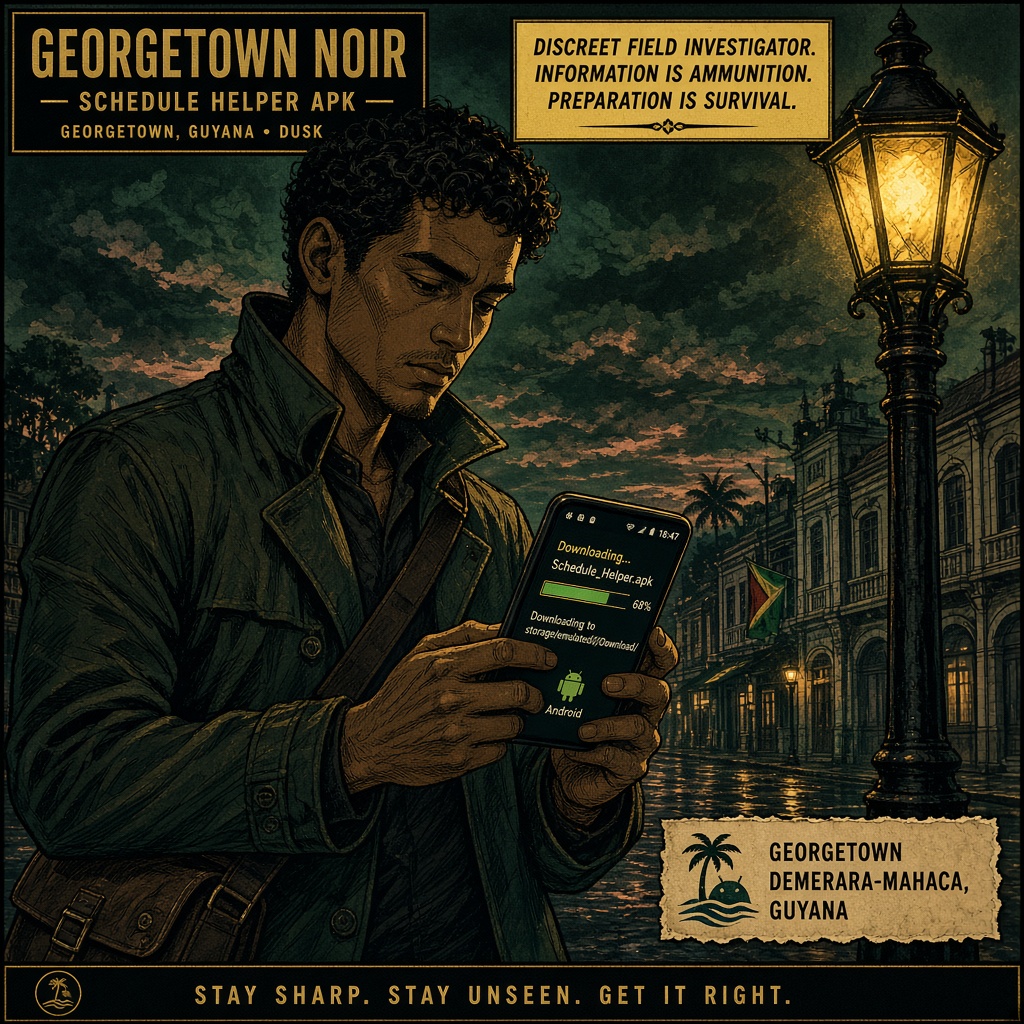
Download Schedule Helper

Install the field APK from the latest release.

  • Get schedule-helper.apk.
  • Allow install from browser / Files if prompted.
  • Do not use Companion Notes — that is the client app.
Field investigator downloading Schedule Helper
Field access app — bland name on purpose.
Step 2

Apply & get approved

Portal apply → approval → app password.

  • Open Join field team, continue with Google, submit your application.
  • When approved, set an app password in the portal.
  • Download Schedule Helper from the approved actions panel (or Releases).
  • No public Create account inside the app.
Approved field portal and app password setup
Google for the website. Email + password for the app.
Step 3

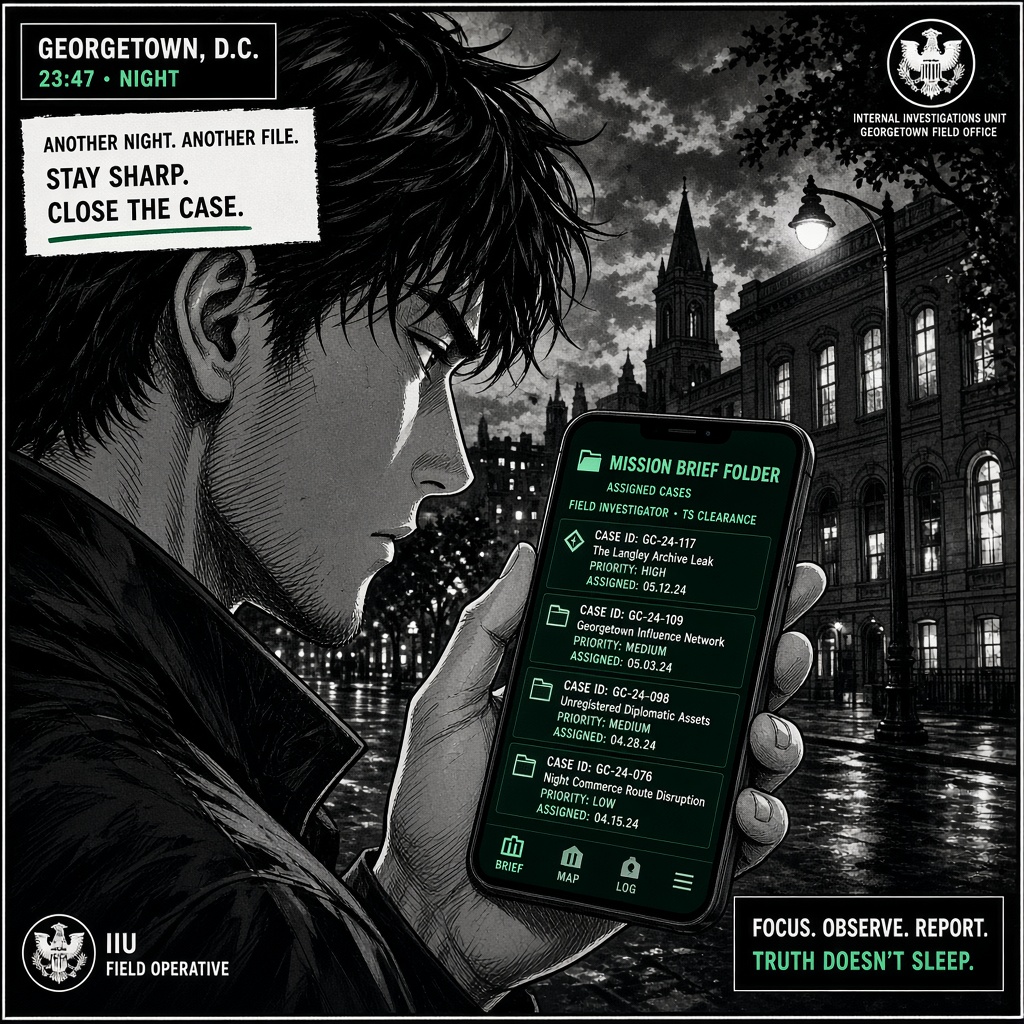
Sign in — assigned cases only

You only see what was assigned to you.

  • Sign in with email + app password on Schedule Helper.
  • Unassigned cases never appear on your board.
  • Clients see “Case team” — never your name.
Assigned cases list on Schedule Helper
Assigned only — no full case board.
Step 4

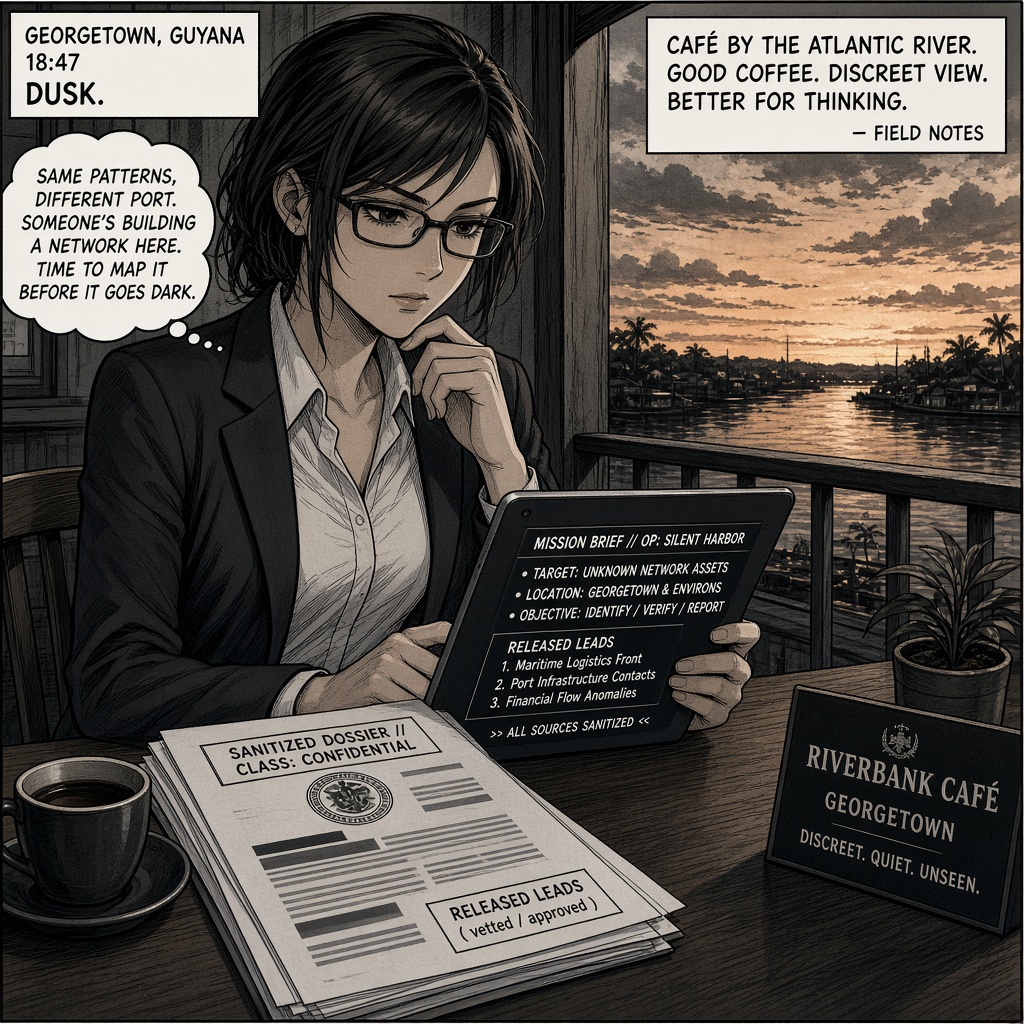
Mission brief & leads

Read the released brief. Work sanitized leads only.

  • Confirm locations, timeline, and subject identifiers.
  • Ask Ops / Case team if a lead is unclear — don’t invent facts.
  • Raw client private notes stay hidden unless released.
Reading mission brief and released leads
Sanitized brief before you act.
Step 5

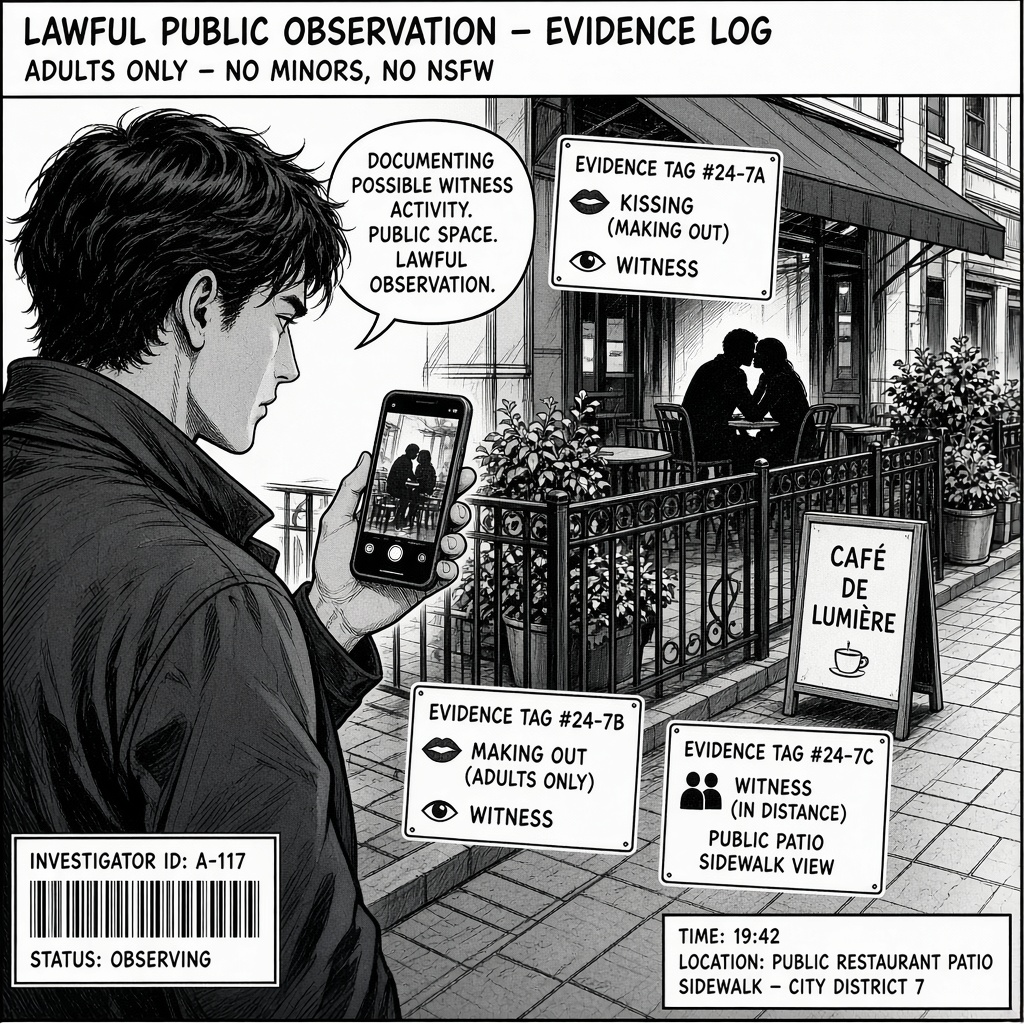
Capture evidence + tags

Photos and video from gallery, camera, or record. Tag what the frame proves.

  • Court-oriented tags include examples like kissing, making_out, witness, hands, restaurant, lodging, ID clarity.
  • Real high-res capture — phone/camera in the field. Original files preferred. No AI, stock, staged, or stolen images.
  • Prefer clear public observations with usable faces and context.
  • Notes: time, place, what you saw — not speculation.
  • Clients do not see uploads until approved and unlocked.
  • Full Field Integrity Rules · rates on earn.
Capturing public patio evidence with tags
Tag what the frame proves — distance and context matter.
Step 6

Intel tools & court checklist

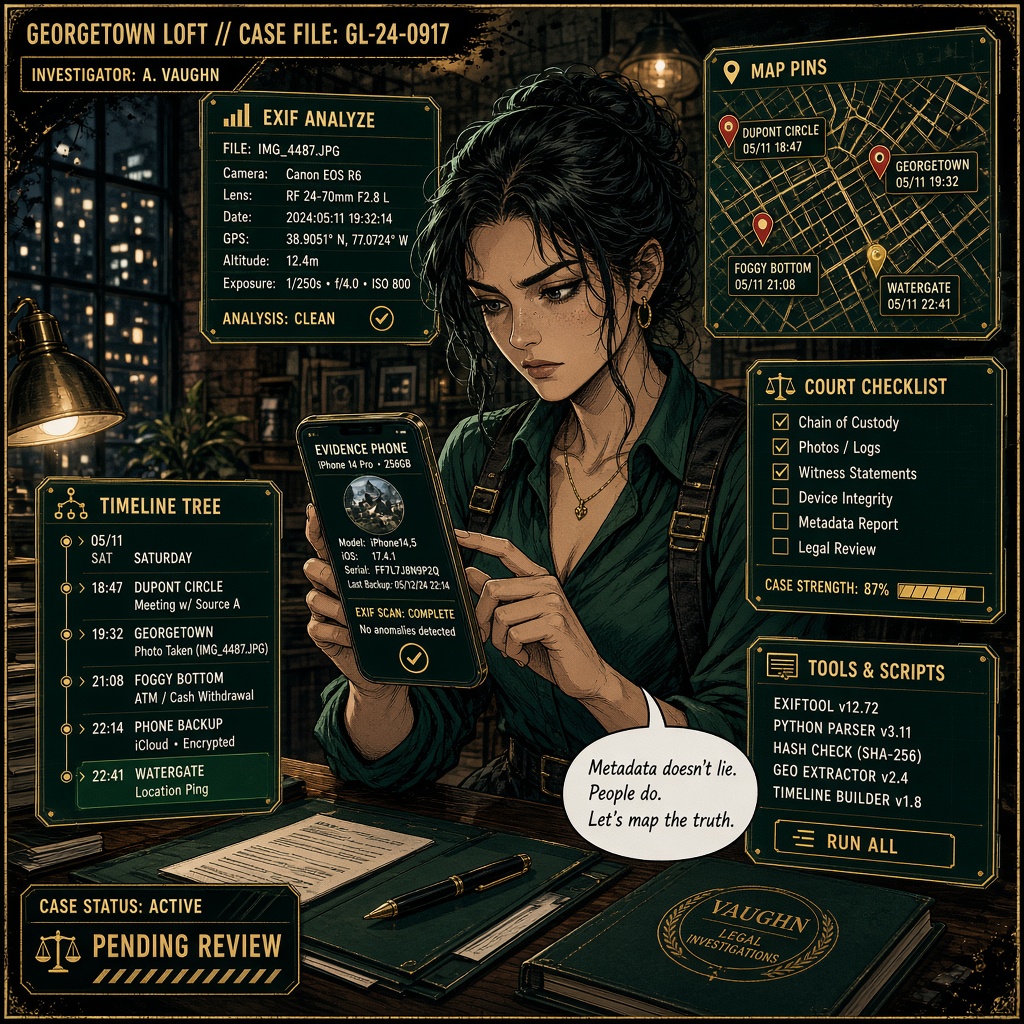
EXIF, OCR, Map / Tree / Timeline, and readiness scoring.

  • Image details — read EXIF time and GPS when present.
  • OCR scan — on-device text from screenshots.
  • Map / Tree / Timeline — case intel views for pins and sequence.
  • Court checklist — ops scoring from tags and metadata (not legal advice). Prefer original camera files with timestamps.
  • Rejected capture? Read the reason, reframe, upload again.
EXIF OCR map timeline and court checklist tools
Quality tools stay on your side of the vault.
Step 7

Ops chat

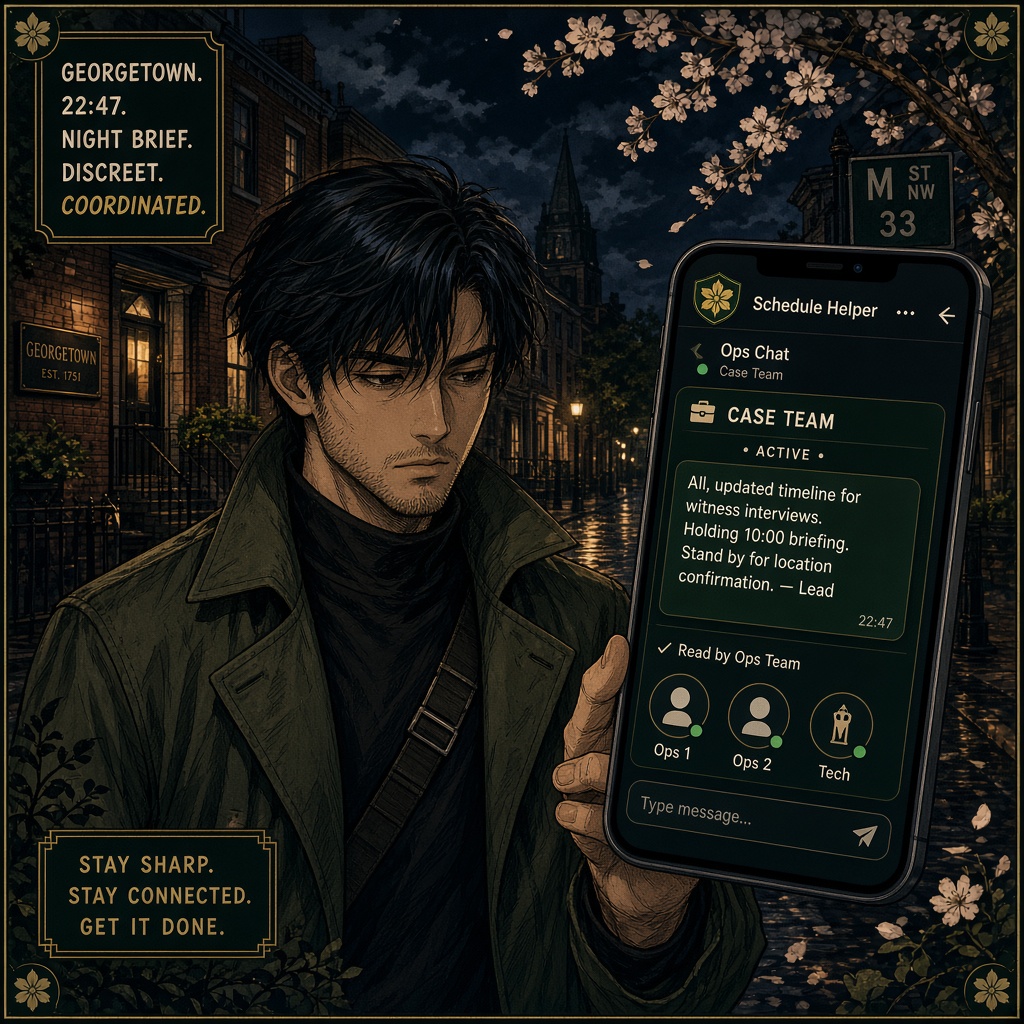
Internal thread with ops. Never visible to clients.

  • Open Ops chat from the case.
  • Clarify leads, safety, or rejection notes here.
  • Do not confront the subject or identify yourself to the client.
Ops chat thread on Schedule Helper
Ops only — clients never see this thread.
Step 8

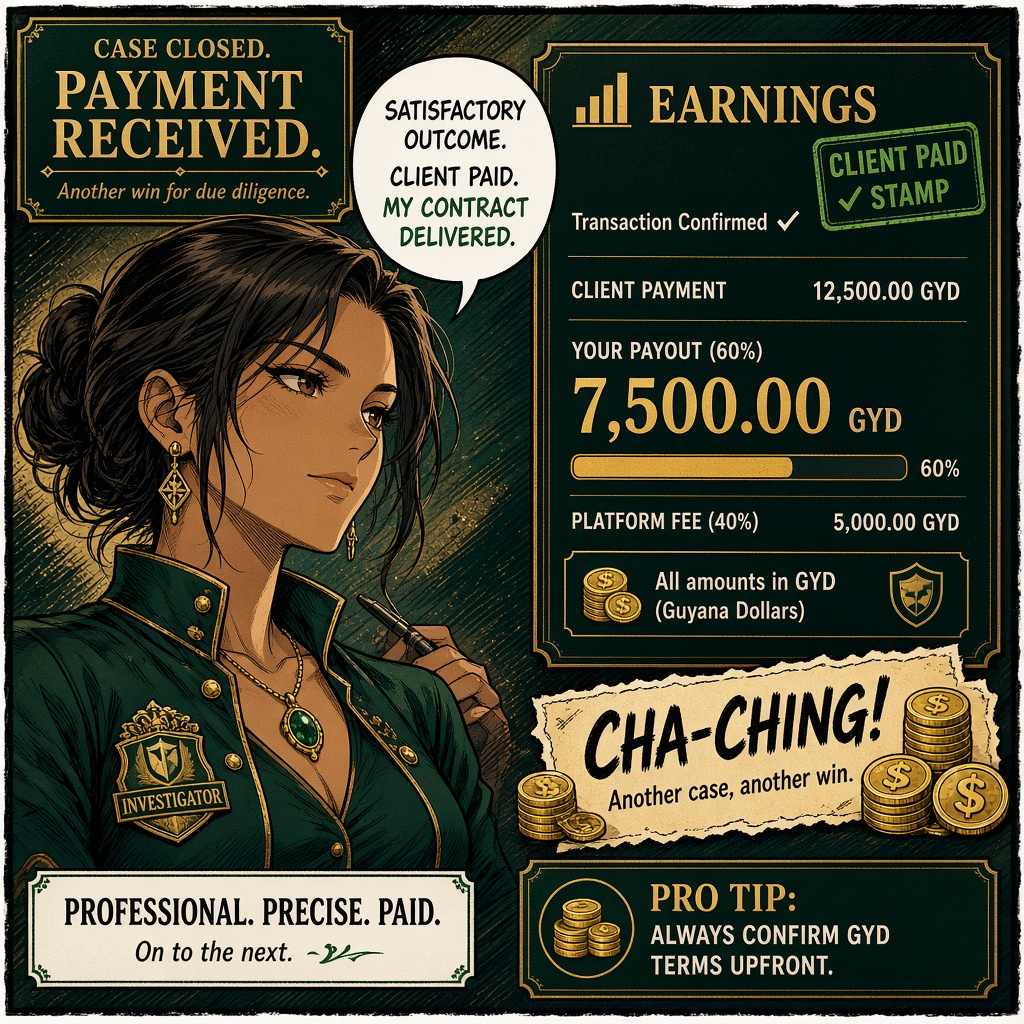
Earnings — 60%

Platform 40% / you 60% of the client evidence or monitoring fee.

  • Capture → approve → client unlock → admin marks paid → transfer.
  • Nothing pays until quality review and unlock clear.
  • Open Earnings in the app to track GYD payouts.
  • Full rates on earn.
Earnings screen showing 60 percent payout
60% after client pays / admin marks paid.
Next panel

Ready?

Pick a track, install the right APK, finish portal approval, then sign in. Adults 18+.